
Logo File Types Explained: EPS, SVG, PDF, PNG and JPG in Plain English
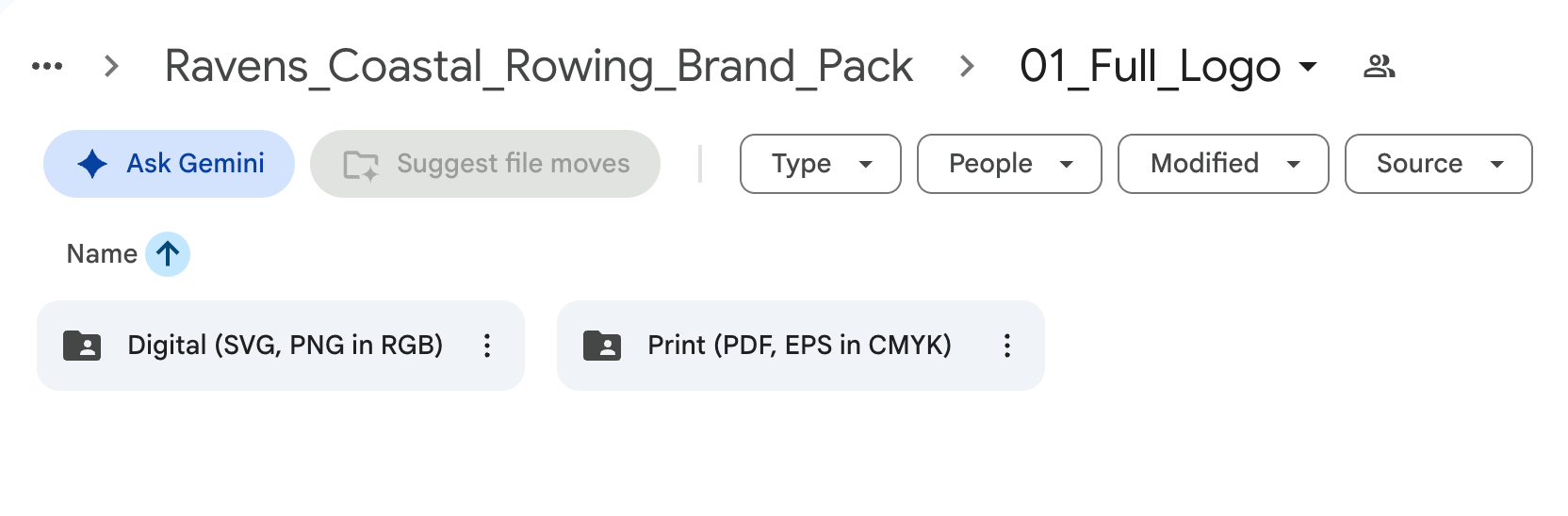
When your branding is finished and the files land in your inbox, it can feel a bit like being handed a toolbox with no instructions. There are folders, there are letters you've never seen before, and you just want to know which one to send to the printer. So here's a plain-English guide to the logo file types I send my clients, and when to use each one.
Vector files and raster files
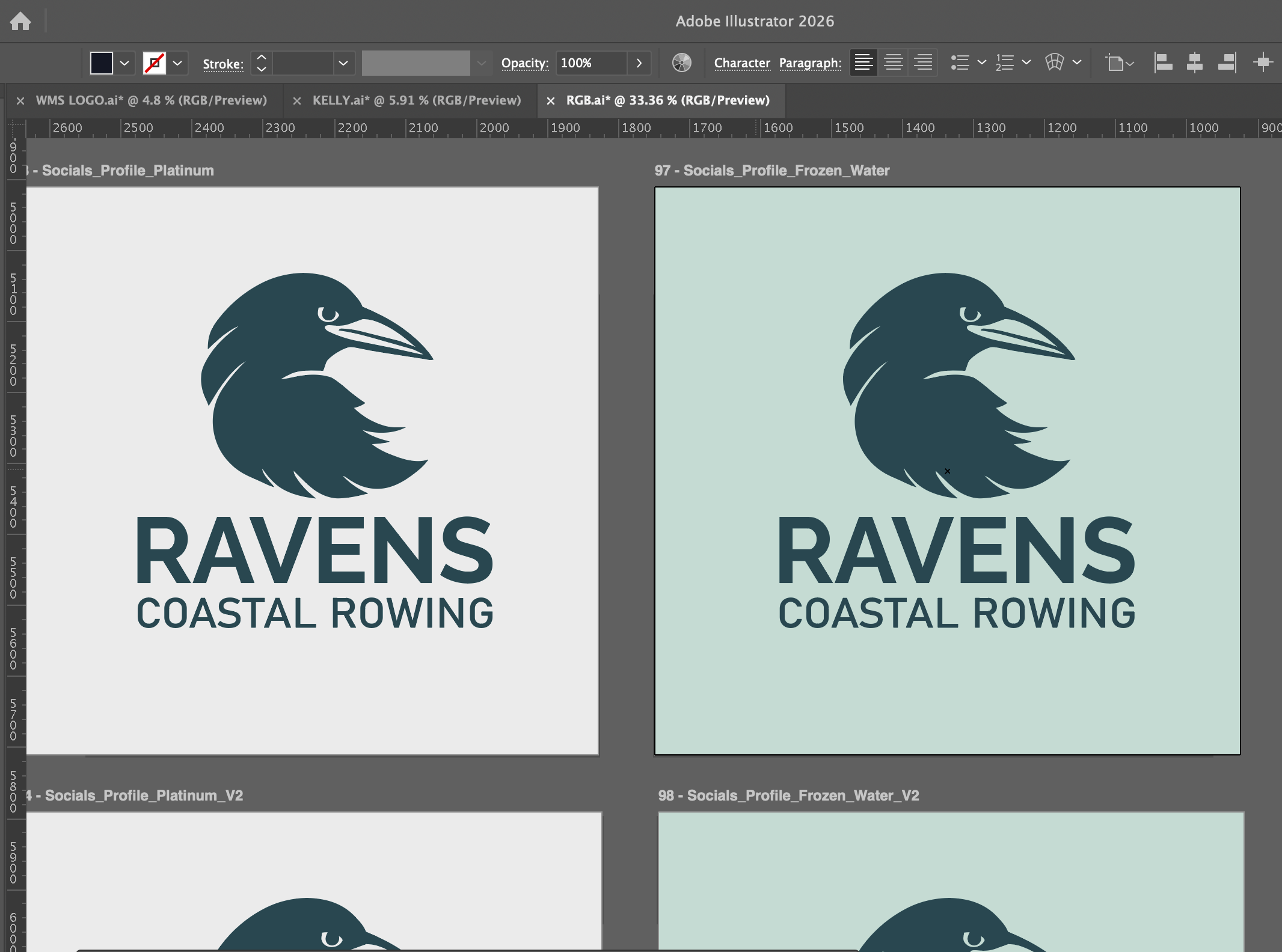
Every logo file is one of two kinds. Vector files are made from mathematical points and lines rather than pixels, so they can be scaled to any size, from a tiny favicon to the side of a van, without ever going blurry. Raster files are made of pixels, so they're perfect for everyday digital use but can look fuzzy if you stretch them bigger than they were made.
A good rule of thumb is to use vector files for anything printed or made bigger, and raster files for anything on screen.
EPS
An EPS is a vector file that most printers, sign makers and embroiderers know how to open. If someone is printing your logo on a banner, a hoodie or a shop sign, this is usually the file they'll ask for.
SVG
An SVG is a lightweight vector file that works really well on websites, because it stays crisp on every screen. If someone is building your website, send them this one.
A high-resolution PDF of your logo is another vector file and a safe bet for printers, because almost everyone can open a PDF. If you're not sure what a printer needs, a PDF is a good one to try first.
PNG
A PNG is a raster file with a transparent background, which means it sits neatly on top of photos or coloured backgrounds without a white box around it. This is the file you'll use most, for Canva, social media graphics, email signatures and presentations.
JPG
A JPG is a raster file with a solid background, usually white. It's handy for quick sharing, like sending your logo to someone over WhatsApp or uploading it somewhere that doesn't accept PNGs, but it's not the best choice when your logo needs to sit on a coloured background.
Why your logo text is converted to outlines
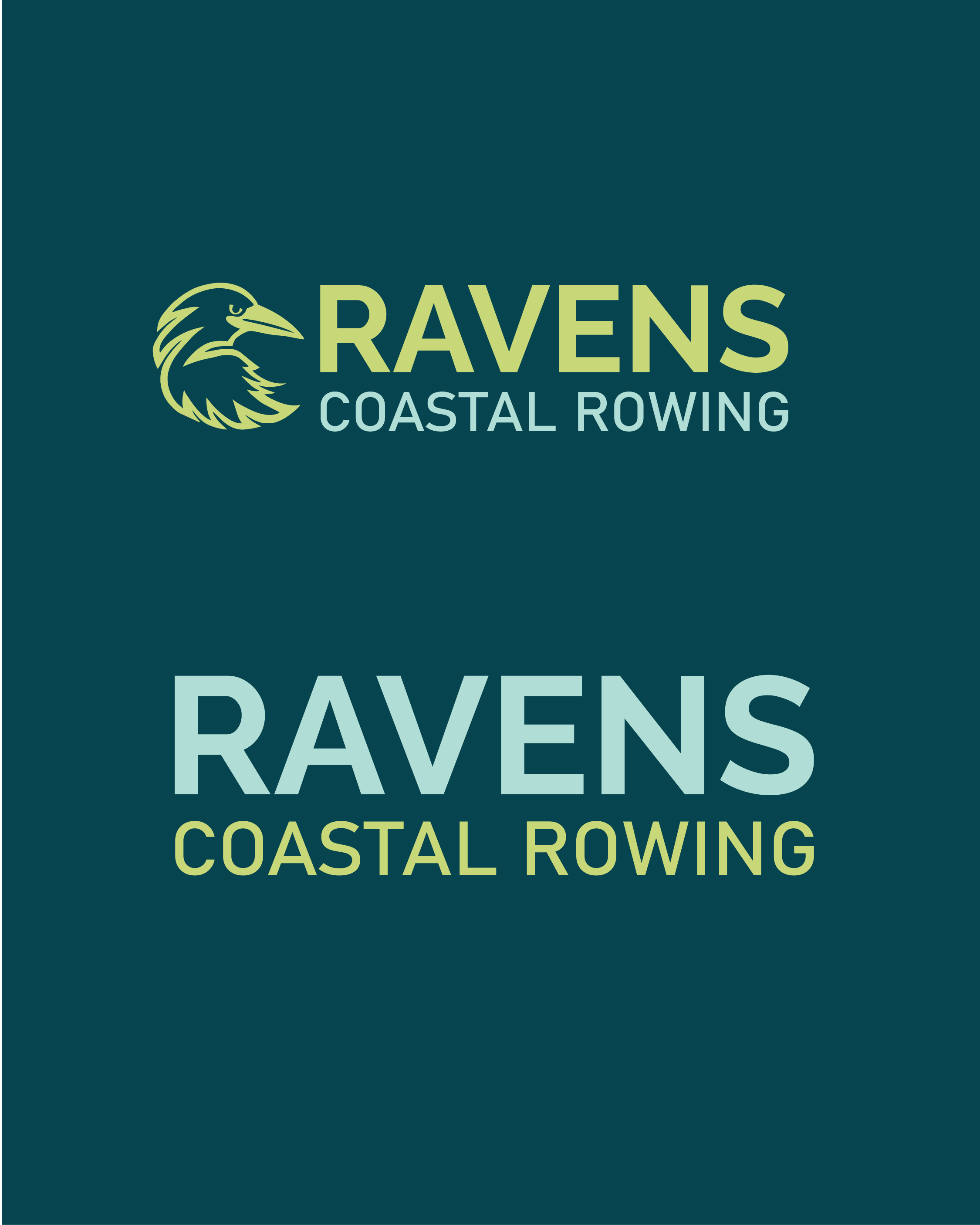
In the files I send, the text in your logo is converted to outlines, which means the letters have been turned into shapes. This sounds technical, but all it means is that your logo will always look exactly right on any computer, even if that computer doesn't have your brand fonts installed.
Your brand guidelines and fonts
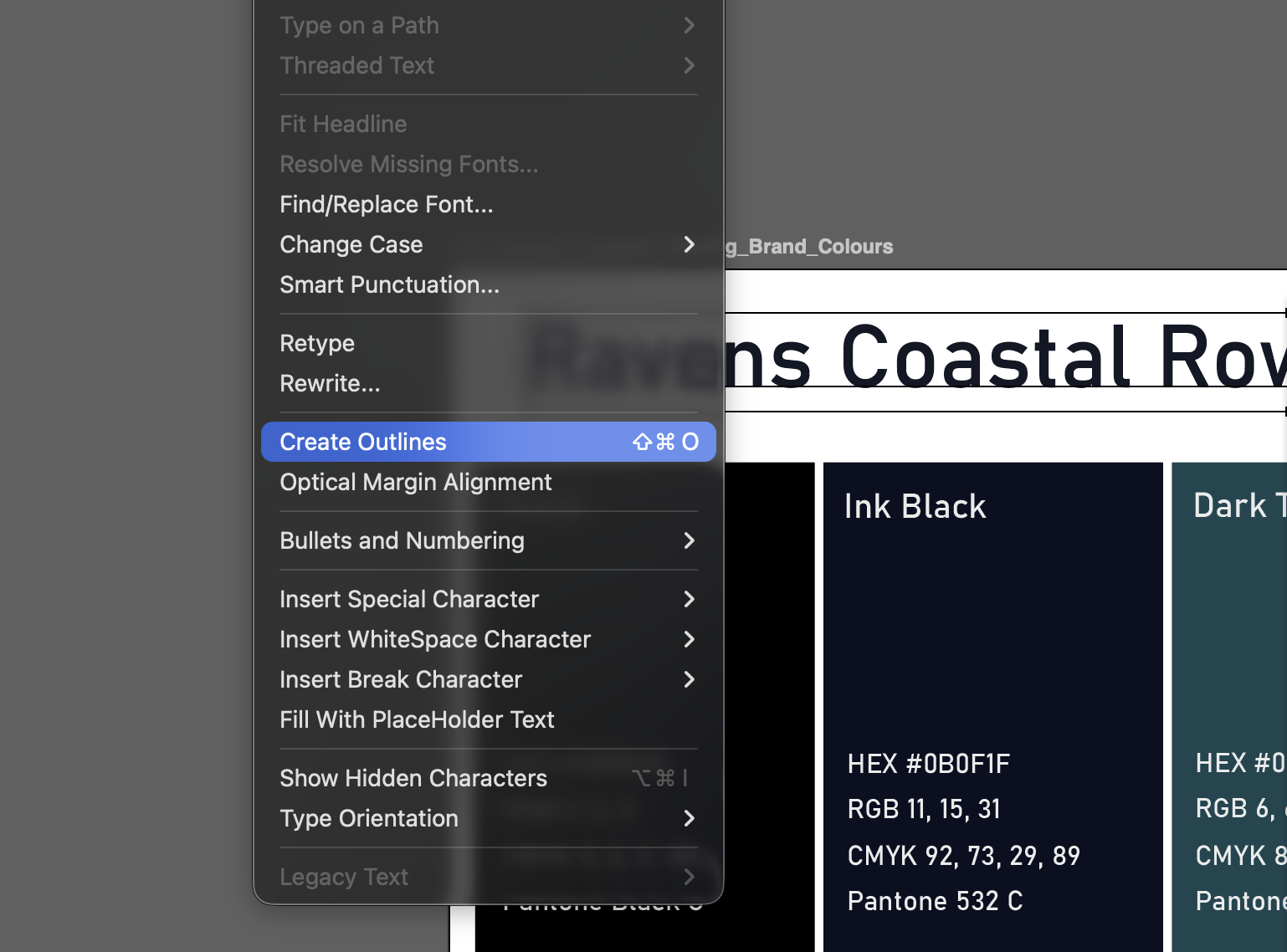
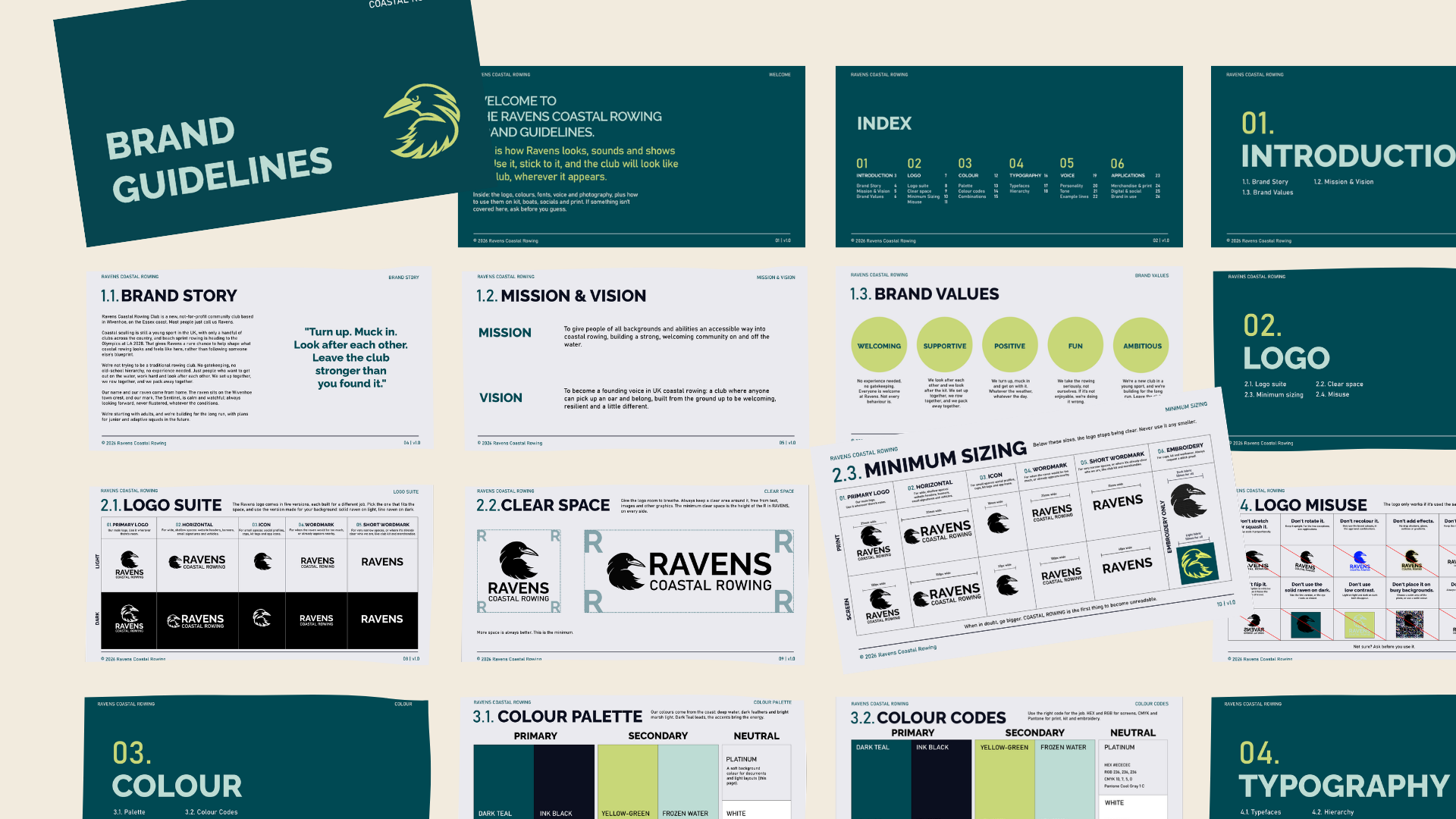
Alongside your logo files you'll get your brand guidelines as a PDF, which tells you how to use your logo, your colour codes and your fonts. If your brand uses free fonts, I'll include the files. If it uses licensed fonts, I'll tell you where to buy your own licence and what licence to buy, so you can use them on your website, in Canva or Adobe Express, on social graphics or on packaging. A great market place for buying fonts is Creative Market, which I often use to get some of my client’s fonts.
A quick cheat sheet
Printing on paper, signs or merch: EPS or PDF
Your website: SVG, or PNG if your website platform prefers it
Canva, Adobe Express, social media and email signatures: PNG
Quick sharing: JPG
Every client of mine also gets a short guide explaining which file to use where, so you never have to guess. If you've got a folder of logo files from someone else and you're not sure what's what, a free brand audit is a good place to get some answers.
Amie x
